
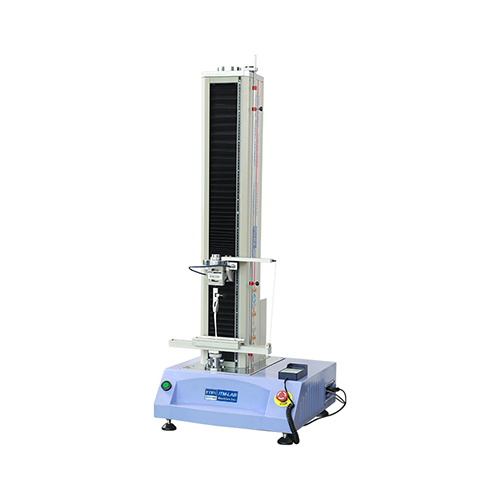
Universal Testing Machines (UTMs) are versatile tools for material and product testing, but they can experience malfunctions that affect accuracy and performance. Common issues include force measurement inaccuracy, no load detection, sample slipping, and control system errors. In this guide, we outline the most common UTM malfunctions and provide practical troubleshooting steps to resolve them, helping you keep your equipment running smoothly.
Malfunction 1: Force measurement inaccuracy. If your UTM is displaying inaccurate force readings, the most common causes are uncalibrated load cells, damaged sensors, or incorrect test settings. First, check if the UTM has been calibrated recently—if not, perform a calibration according to ISO 7500-1 standards (as outlined in Blog 16). Inspect the load cell for damage or wear, and replace it if necessary. Verify the test settings (e.g., load range, units) to ensure they are correct for your sample.
Malfunction 2: No load detection (UTM does not register force). If the UTM does not detect any force when testing, check the load cell connections—loose or damaged wires can cause this issue. Tighten any loose connections and inspect the wires for damage. If the connections are intact, check the load cell for functionality—use a calibrated force transducer to test the load cell. If the load cell is faulty, contact ITM-LAB for replacement.
Malfunction 3: Sample slipping during testing. Sample slipping can lead to inaccurate results and damage to the UTM. This issue is often caused by improper fixture selection, loose grips, or dirty fixture surfaces. Ensure you are using the correct fixtures for your sample type (e.g., tensile grips for fabric, compression platens for plastic). Tighten the grips to the recommended pressure, and clean the fixture surfaces to remove any dust or debris that may cause slipping. For slippery samples, use grip pads or serrated grips to improve hold.
Malfunction 4: Control system errors (software freezing, unresponsive touchscreen). Control system errors can disrupt testing and lead to data loss. First, restart the UTM and the control software to resolve temporary glitches. Check the software for updates—outdated software can cause compatibility issues. If the touchscreen is unresponsive, clean it with a soft, dry cloth to remove any dirt or smudges. If the error persists, contact ITM-LAB’s technical support to troubleshoot the control system.
Malfunction 5: Slow or uneven movement of the crosshead. Slow or uneven crosshead movement can affect test accuracy, especially for dynamic tests. This is often caused by a lack of lubrication, worn ball screws, or a faulty servo motor. Lubricate the ball screws and moving parts with the recommended lubricant. Inspect the ball screws for wear or damage, and replace them if necessary. Check the servo motor for power supply and functionality—replace it if it is faulty.
Prevention tips: Regular calibration and maintenance (as outlined in Blogs 16 and 17) are key to preventing UTM malfunctions. Avoid overloading the UTM beyond its capacity, and use the correct fixtures and test settings for your samples. ITM-LAB’s Universal Testing Machine line is designed for reliability, and our technical support team is available to help resolve any malfunctions quickly.
By troubleshooting these common UTM malfunctions promptly, you can minimize downtime, ensure accurate test results, and extend the lifespan of your equipment. If you are unable to resolve a malfunction on your own, contact ITM-LAB’s professional service team for assistance.
